

Which websites is Webflow CMS suitable for?
The short answer: any website that regularly publishes content or manages structured data. But that doesn't tell the whole story.
Webflow CMS is particularly well-suited for companies that are outgrowing a simple corporate website. As soon as you start publishing blog posts, announcing events, managing job listings, maintaining location data, or showcasing projects, you need a system that makes this content structured and scalable.
Typical use cases include SaaS companies with a content marketing strategy, service providers with a blog and portfolio, companies with multiple locations, recruiting pages with ongoing job openings, and event-based organizations. What they all have in common is the need for a CMS that does more than just store text—it organizes content within a well-thought-out structure.
And that is exactly where Webflow’s strength lies. It is not a generic blogging tool; it is a content platform that can be tailored precisely to your requirements.
The biggest advantage: fill in the form, publish, done
What many clients appreciate most about Webflow CMS is the simplicity in day-to-day use. After the initial setup by the developer, the client only needs to focus on one thing: entering content.
No code. No manual linking. No plugins that need updating or configuring. No fear that a wrong entry will break the layout.
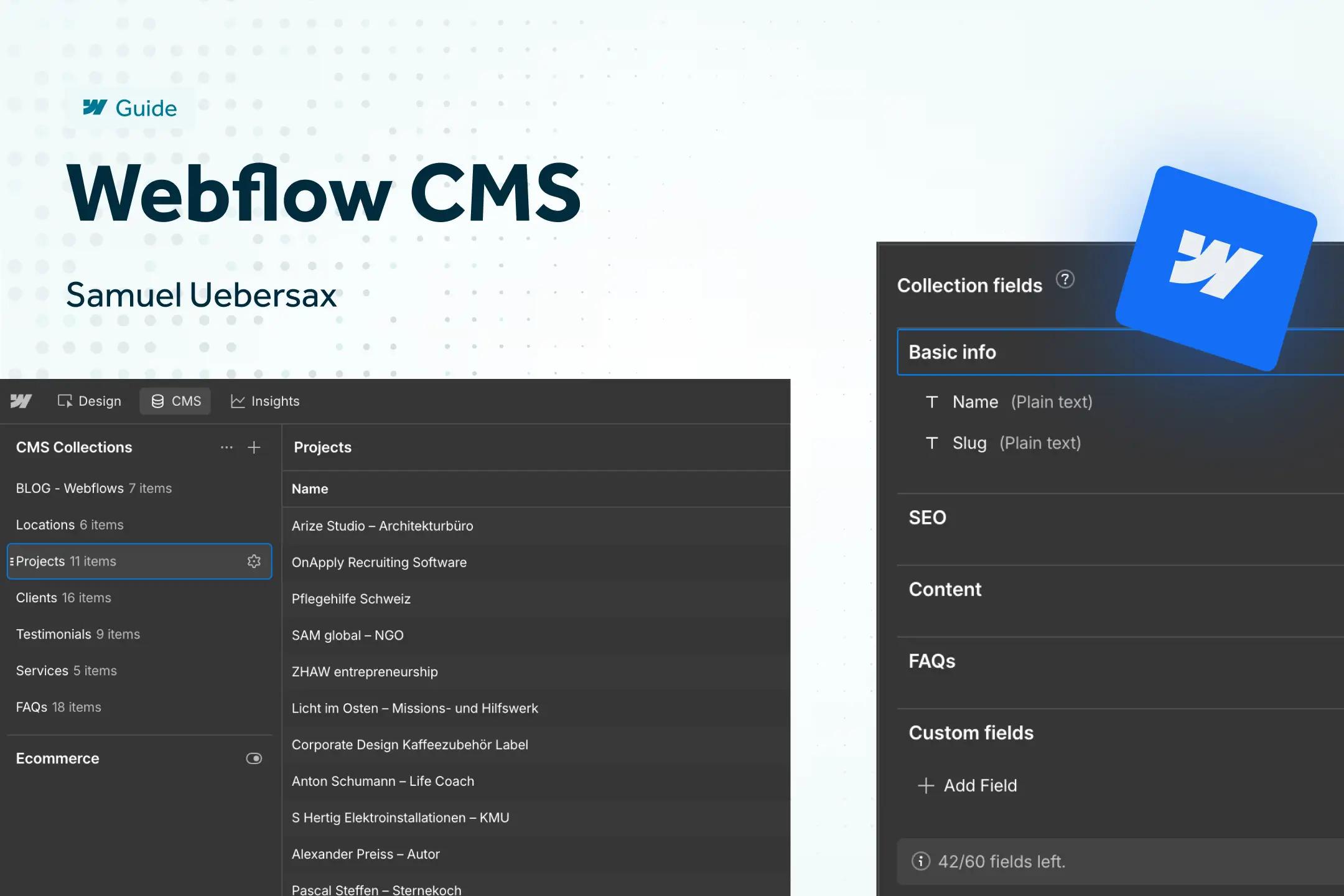
Here is how it works in practice: The developer creates a dedicated collection for each content type with a custom input form. A blog post has fields for title, teaser, body text, hero image, meta title, meta description, and categories. An event has fields for date, location, description, and registration link. A job posting has fields for position, location, workload, and requirements.
The client opens the Webflow Editor, selects the appropriate collection, fills in the required fields, and clicks "Publish". Alternatively, they can schedule the post for a specific date, and Webflow will publish it automatically. The layout, the links, the SEO settings—everything is already defined in the template and applied automatically.
This means: Your marketing team can publish content independently, without needing to contact a developer. No waiting, no dependencies, no technical hurdles.
How much does Webflow cost with CMS hosting?
Webflow offers various site plans. To use the CMS, you need at least the CMS plan. Here is an overview of the relevant plans (prices based on annual billing in USD):
CMS plan – $23/month: Up to 2,000 CMS items, ideal for blogs, content-driven websites, and small businesses. Includes API access, form submissions, and a global CDN on AWS infrastructure.
Business plan – $39/month: Up to 10,000 CMS items and 400,000 monthly visits. For growing companies with higher traffic and more extensive CMS requirements.
Enterprise plan – custom pricing: For large organizations with specific requirements for security, SLAs, bandwidth, and support.
All plans include SSL, CDN hosting, automatic backups, and responsive delivery. There is no separate hosting you need to purchase – everything is included in one plan. If you choose monthly billing instead of annual, you will pay slightly more: the CMS plan then costs $29/month, and the Business plan $49/month.
Compared to a WordPress setup with separate hosting, SSL certificates, security plugins, backup solutions, and CDN services, Webflow is often more cost-effective and requires significantly less maintenance.
What makes Collections in Webflow so valuable?
Collections are the heart of the Webflow CMS – and the feature that sets Webflow apart from virtually every other website builder.
A collection is essentially a structured database with its own layout. Each collection has its own template, fields, and input form. This means you aren't just creating "pages," but content types with clearly defined structures.
This is where it gets interesting when you compare it to WordPress. By default, WordPress has two content types: pages and posts. If you want to manage events, jobs, testimonials, or locations, you need custom post types—and for that, you need plugins like ACF (Advanced Custom Fields) or CPT UI. Each plugin brings its own updates, compatibility issues, and security risks—according to Patchstack’s "State of WordPress Security 2025" , around 11,334 new vulnerabilities were reported in the WordPress ecosystem in 2025 alone, 91% of which were in plugins.
In Webflow, this is solved natively. You create as many collections as you need, each with individual fields and its own design template:
Blog posts: Title, body, hero image, categories, meta title, meta description, teaser, FAQ fields
Events: Date, time, location, description, registration link, category
Job postings: Position, department, location, workload, requirements, application link
Locations: Address, opening hours, phone, email, Google Maps embed, description
Categories: Name, description, icon – as a separate collection that is linked to other collections
And here is the crucial point: Collections can be linked to one another. A blog post can reference categories. An event can be assigned a location. A job posting can be linked to a department and a location. These reference fields (Reference and Multi-Reference) make the Webflow CMS a true relational database – visually manageable, without a single line of code.
The result: When you change a location, the information updates everywhere that location is referenced. No manual tracking, no copy-paste errors, no inconsistencies.
Webflow CMS vs. WordPress: The structural difference
The comparison between Webflow CMS and WordPress is often conducted on the surface: "Webflow is easier" or "WordPress has more plugins." But the real difference lies deeper – in the way content is structured and managed .
WordPress: You have a generic editor (Gutenberg or Classic Editor) that looks the same for all content types. Whether it's a blog post, event, or job posting – the input mask is the same text box. For structured data, you need plugins that add custom fields. This works, but it is a patchwork of different pluginsthat must be maintained, updated, and coordinated with one another.
Webflow: Each collection has its own, custom-tailored input mask. The blog post has different fields than the event, and the event has different fields than the job posting. The editor sees exactly the fields they need to fill out – nothing more, nothing less. The layout, the links, and the SEO settings are defined in the template and applied automatically.
In practice, this means:
In WordPress, you open the editor, see an empty text box, and have to know what structure the post should have. In Webflow, you open the editor, see clearly labeled fields with character limits and required field markers – and know immediately what goes where.
Then there is the maintenance aspect. WordPress requires regular updates for the core, themes, and plugins. Every update carries the risk of compatibility issues. Webflow is updated centrally as a platform – you don't have to worry about a thing.
This is not to say that WordPress is bad. For certain use cases – especially shops using WooCommerce or very large content portals – WordPress has its place. But for most corporate websites with structured content, Webflow offers the more modern, low-maintenance, and secure solution.
SEO and CMS: Well-thought-out architecture as a scalable foundation
A CMS is only as good as the architecture behind it. And this is exactly where Webflow unfolds its full potential – when set up correctly.
Every collection needs an overview page. This sounds trivial, but it is surprisingly often forgotten. The overview page (listing page) is the central anchor point that is linked in the navigation and builds authority. This authority flows via internal links to the individual collection items. Without an overview page, your content is difficult for Google to find. You can find more on this in my article "SEO in Webflow: More than just meta titles and descriptions".
Dynamic meta tags from the CMS: In Webflow, you can create meta title and description fields directly in the collection – with character limits. This ensures that every editor keeps the meta data at the optimal length. These fields are dynamically integrated into the collection template. No manual updates, no forgotten meta tags.
URL structure and slugs: Every collection automatically generates URL slugs from the item name. You should optimize these manually: short, keyword-rich slugs without filler words perform better. The collection itself defines the parent URL path – e.g., /webflow/webflow-cms for this article.
Breadcrumbs and internal linking: If every collection item contains breadcrumbs, hundreds of internal links back to the overview pages are created automatically. With 50 blog articles with breadcrumbs like Home → Blog → Article that is 50 additional links that strengthen your site architecture.
Linked collections as an SEO advantage: Reference fields create natural thematic clusters. When blog posts reference categories and categories have their own overview pages, you automatically build a topic cluster architecture – exactly what Google prefers.
A well-configured Webflow CMS is therefore not just a content management tool, but a scalable SEO machine. If you want to build your CMS setup professionally, I can support you with custom Webflow CMS development.
Conclusion: Webflow CMS is more than just a blog system
Webflow CMS is a full-fledged content platform that combines structured input forms, linked data types, and automated SEO fundamentals in one system. The client fills out forms and publishes. The developer defines the structure, layout, and connections once – after that, the system runs itself.
Compared to WordPress, there is no need for plugin maintenance, update risks, or reliance on third-party solutions for basic functions. And compared to other website builders, Webflow offers the flexibility of a real database with the usability of a visual editor.
If you want to know whether Webflow CMS is the right solution for your company or how you can optimize your existing CMS setup – let's talk about it. In a free initial consultation, I will analyze your requirements and show you which structure works best for your content.